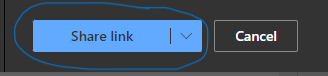
9. All attachments/files should now be placed in the email

 How to Share a Large File with Outlook
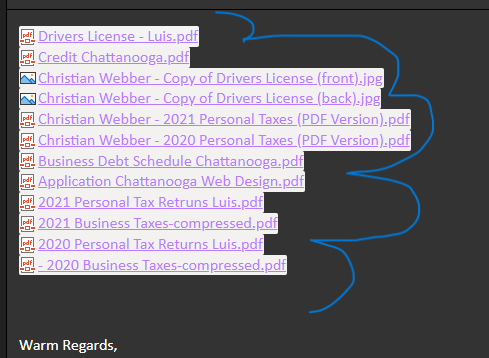
9. All attachments/files should now be placed in the email
8. Select Share link
9. All attachments/files should now be placed in the email
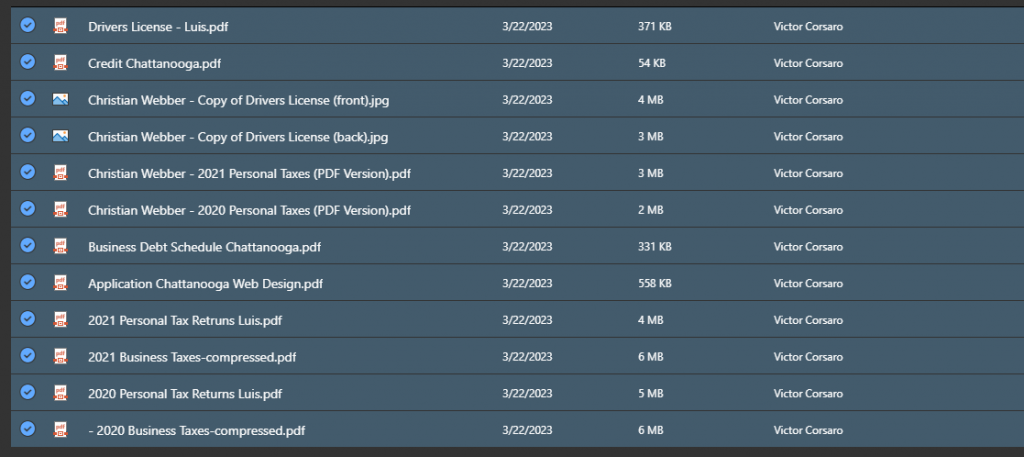
7. Select all the files to be sent
**Holding the ‘SHIFT’ key will allow you to select more than one at a time**
8. Select Share link
9. All attachments/files should now be placed in the email

7. Select all the files to be sent
**Holding the ‘SHIFT’ key will allow you to select more than one at a time**
8. Select Share link
9. All attachments/files should now be placed in the email
6. Select Files and double click on the folder with the files you want to send
6.1 This will be one file if you are just sending one large file and not a folder
7. Select all the files to be sent
**Holding the ‘SHIFT’ key will allow you to select more than one at a time**
8. Select Share link
9. All attachments/files should now be placed in the email
6. Select Files and double click on the folder with the files you want to send
6.1 This will be one file if you are just sending one large file and not a folder
7. Select all the files to be sent
**Holding the ‘SHIFT’ key will allow you to select more than one at a time**
8. Select Share link
9. All attachments/files should now be placed in the email
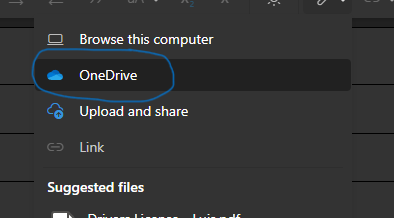
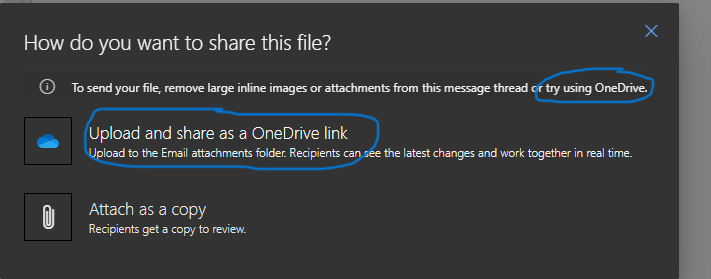
5. Select OneDrive
6. Select Files and double click on the folder with the files you want to send
6.1 This will be one file if you are just sending one large file and not a folder
7. Select all the files to be sent
**Holding the ‘SHIFT’ key will allow you to select more than one at a time**
8. Select Share link
9. All attachments/files should now be placed in the email
5. Select OneDrive
6. Select Files and double click on the folder with the files you want to send
6.1 This will be one file if you are just sending one large file and not a folder
7. Select all the files to be sent
**Holding the ‘SHIFT’ key will allow you to select more than one at a time**
8. Select Share link
9. All attachments/files should now be placed in the email
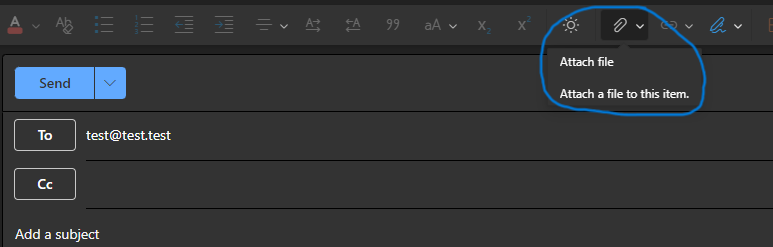
4. Select attach a file in the email like normal
5. Select OneDrive
6. Select Files and double click on the folder with the files you want to send
6.1 This will be one file if you are just sending one large file and not a folder
7. Select all the files to be sent
**Holding the ‘SHIFT’ key will allow you to select more than one at a time**
8. Select Share link
9. All attachments/files should now be placed in the email
4. Select attach a file in the email like normal
5. Select OneDrive
6. Select Files and double click on the folder with the files you want to send
6.1 This will be one file if you are just sending one large file and not a folder
7. Select all the files to be sent
**Holding the ‘SHIFT’ key will allow you to select more than one at a time**
8. Select Share link
9. All attachments/files should now be placed in the email
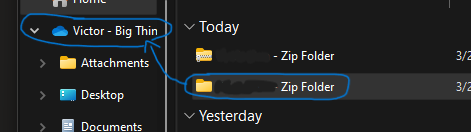
3. With the new Unzipped folder, drag it to OneDrive on the left to put the file into the cloud
3.1 Same idea for a large file
4. Select attach a file in the email like normal
5. Select OneDrive
6. Select Files and double click on the folder with the files you want to send
6.1 This will be one file if you are just sending one large file and not a folder
7. Select all the files to be sent
**Holding the ‘SHIFT’ key will allow you to select more than one at a time**
8. Select Share link
9. All attachments/files should now be placed in the email
3. With the new Unzipped folder, drag it to OneDrive on the left to put the file into the cloud
3.1 Same idea for a large file
4. Select attach a file in the email like normal
5. Select OneDrive
6. Select Files and double click on the folder with the files you want to send
6.1 This will be one file if you are just sending one large file and not a folder
7. Select all the files to be sent
**Holding the ‘SHIFT’ key will allow you to select more than one at a time**
8. Select Share link
9. All attachments/files should now be placed in the email
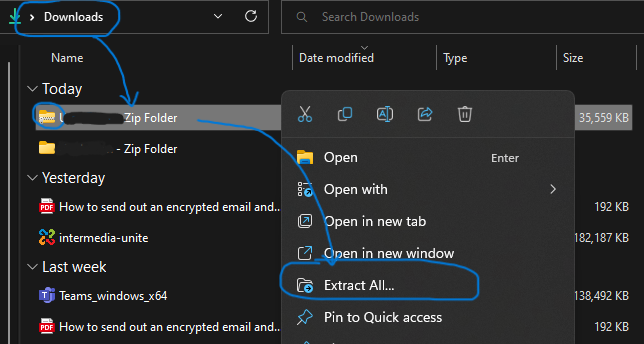
2. In your ‘Downloads’ folder on your pc, right click on the zip folder and select extract all
2.1 If just one large file, you will not have to extract anything*
3. With the new Unzipped folder, drag it to OneDrive on the left to put the file into the cloud
3.1 Same idea for a large file
4. Select attach a file in the email like normal
5. Select OneDrive
6. Select Files and double click on the folder with the files you want to send
6.1 This will be one file if you are just sending one large file and not a folder
7. Select all the files to be sent
**Holding the ‘SHIFT’ key will allow you to select more than one at a time**
8. Select Share link
9. All attachments/files should now be placed in the email

2. In your ‘Downloads’ folder on your pc, right click on the zip folder and select extract all
2.1 If just one large file, you will not have to extract anything*
3. With the new Unzipped folder, drag it to OneDrive on the left to put the file into the cloud
3.1 Same idea for a large file
4. Select attach a file in the email like normal
5. Select OneDrive
6. Select Files and double click on the folder with the files you want to send
6.1 This will be one file if you are just sending one large file and not a folder
7. Select all the files to be sent
**Holding the ‘SHIFT’ key will allow you to select more than one at a time**
8. Select Share link
9. All attachments/files should now be placed in the email
1. Download Zip file OR large file
2. In your ‘Downloads’ folder on your pc, right click on the zip folder and select extract all
2.1 If just one large file, you will not have to extract anything*
3. With the new Unzipped folder, drag it to OneDrive on the left to put the file into the cloud
3.1 Same idea for a large file
4. Select attach a file in the email like normal
5. Select OneDrive
6. Select Files and double click on the folder with the files you want to send
6.1 This will be one file if you are just sending one large file and not a folder
7. Select all the files to be sent
**Holding the ‘SHIFT’ key will allow you to select more than one at a time**
8. Select Share link
9. All attachments/files should now be placed in the email
1. Download Zip file OR large file
2. In your ‘Downloads’ folder on your pc, right click on the zip folder and select extract all
2.1 If just one large file, you will not have to extract anything*
3. With the new Unzipped folder, drag it to OneDrive on the left to put the file into the cloud
3.1 Same idea for a large file
4. Select attach a file in the email like normal
5. Select OneDrive
6. Select Files and double click on the folder with the files you want to send
6.1 This will be one file if you are just sending one large file and not a folder
7. Select all the files to be sent
**Holding the ‘SHIFT’ key will allow you to select more than one at a time**
8. Select Share link
9. All attachments/files should now be placed in the email
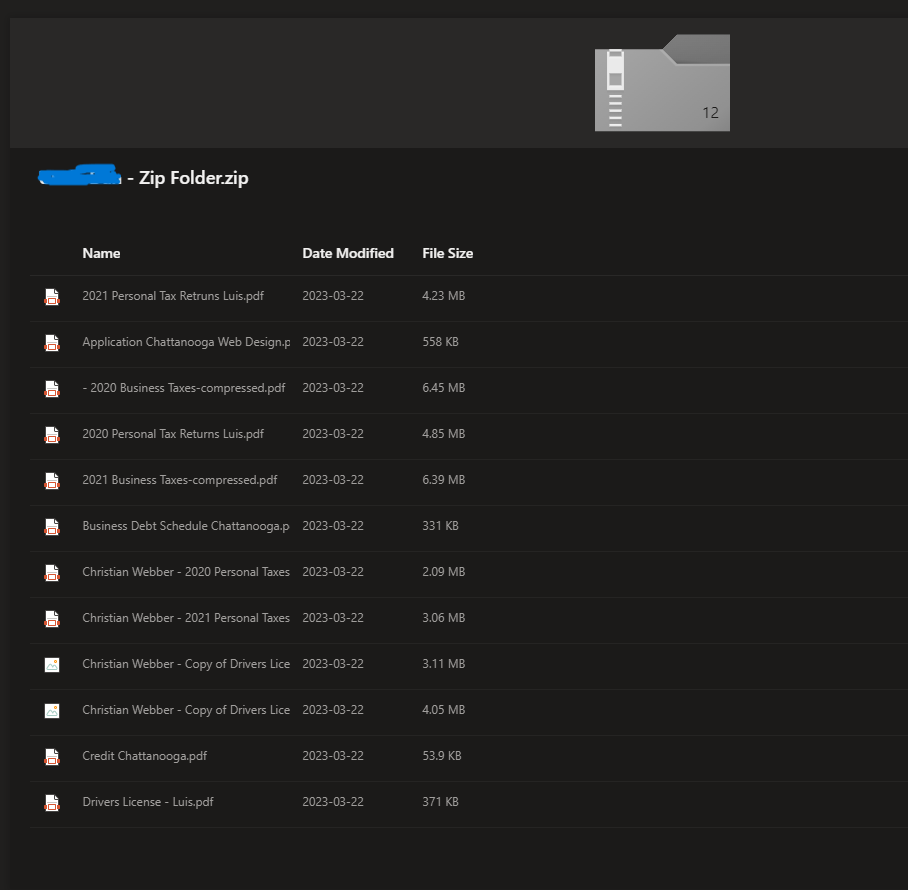
1. Download Zip file OR large file
2. In your ‘Downloads’ folder on your pc, right click on the zip folder and select extract all
2.1 If just one large file, you will not have to extract anything*
3. With the new Unzipped folder, drag it to OneDrive on the left to put the file into the cloud
3.1 Same idea for a large file
4. Select attach a file in the email like normal
5. Select OneDrive
6. Select Files and double click on the folder with the files you want to send
6.1 This will be one file if you are just sending one large file and not a folder
7. Select all the files to be sent
**Holding the ‘SHIFT’ key will allow you to select more than one at a time**
8. Select Share link
9. All attachments/files should now be placed in the email
-a file size exceeds the outlook attachment size limit
-A large ZIP folder/files
This does NOT work on the outlook app, only using outlook on the web will allow you to send
these large files through OneDrive
1. Download Zip file OR large file
2. In your ‘Downloads’ folder on your pc, right click on the zip folder and select extract all
2.1 If just one large file, you will not have to extract anything*
3. With the new Unzipped folder, drag it to OneDrive on the left to put the file into the cloud
3.1 Same idea for a large file
4. Select attach a file in the email like normal
5. Select OneDrive
6. Select Files and double click on the folder with the files you want to send
6.1 This will be one file if you are just sending one large file and not a folder
7. Select all the files to be sent
**Holding the ‘SHIFT’ key will allow you to select more than one at a time**
8. Select Share link
9. All attachments/files should now be placed in the email
When :
-a file size exceeds the outlook attachment size limit
-A large ZIP folder/files
This does NOT work on the outlook app, only using outlook on the web will allow you to send
these large files through OneDrive
1. Download Zip file OR large file
2. In your ‘Downloads’ folder on your pc, right click on the zip folder and select extract all
2.1 If just one large file, you will not have to extract anything*
3. With the new Unzipped folder, drag it to OneDrive on the left to put the file into the cloud
3.1 Same idea for a large file
4. Select attach a file in the email like normal
5. Select OneDrive
6. Select Files and double click on the folder with the files you want to send
6.1 This will be one file if you are just sending one large file and not a folder
7. Select all the files to be sent
**Holding the ‘SHIFT’ key will allow you to select more than one at a time**
8. Select Share link
9. All attachments/files should now be placed in the email
When :
-a file size exceeds the outlook attachment size limit
-A large ZIP folder/files
This does NOT work on the outlook app, only using outlook on the web will allow you to send
these large files through OneDrive
1. Download Zip file OR large file
2. In your ‘Downloads’ folder on your pc, right click on the zip folder and select extract all
2.1 If just one large file, you will not have to extract anything*
3. With the new Unzipped folder, drag it to OneDrive on the left to put the file into the cloud
3.1 Same idea for a large file
4. Select attach a file in the email like normal
5. Select OneDrive
6. Select Files and double click on the folder with the files you want to send
6.1 This will be one file if you are just sending one large file and not a folder
7. Select all the files to be sent
**Holding the ‘SHIFT’ key will allow you to select more than one at a time**
8. Select Share link
9. All attachments/files should now be placed in the email
When :
-a file size exceeds the outlook attachment size limit
-A large ZIP folder/files
This does NOT work on the outlook app, only using outlook on the web will allow you to send
these large files through OneDrive
1. Download Zip file OR large file
2. In your ‘Downloads’ folder on your pc, right click on the zip folder and select extract all
2.1 If just one large file, you will not have to extract anything*
3. With the new Unzipped folder, drag it to OneDrive on the left to put the file into the cloud
3.1 Same idea for a large file
4. Select attach a file in the email like normal
5. Select OneDrive
6. Select Files and double click on the folder with the files you want to send
6.1 This will be one file if you are just sending one large file and not a folder
7. Select all the files to be sent
**Holding the ‘SHIFT’ key will allow you to select more than one at a time**
8. Select Share link
9. All attachments/files should now be placed in the email
When :
-a file size exceeds the outlook attachment size limit
-A large ZIP folder/files
This does NOT work on the outlook app, only using outlook on the web will allow you to send
these large files through OneDrive
1. Download Zip file OR large file
2. In your ‘Downloads’ folder on your pc, right click on the zip folder and select extract all
2.1 If just one large file, you will not have to extract anything*
3. With the new Unzipped folder, drag it to OneDrive on the left to put the file into the cloud
3.1 Same idea for a large file
4. Select attach a file in the email like normal
5. Select OneDrive
6. Select Files and double click on the folder with the files you want to send
6.1 This will be one file if you are just sending one large file and not a folder
7. Select all the files to be sent
**Holding the ‘SHIFT’ key will allow you to select more than one at a time**
8. Select Share link
9. All attachments/files should now be placed in the email