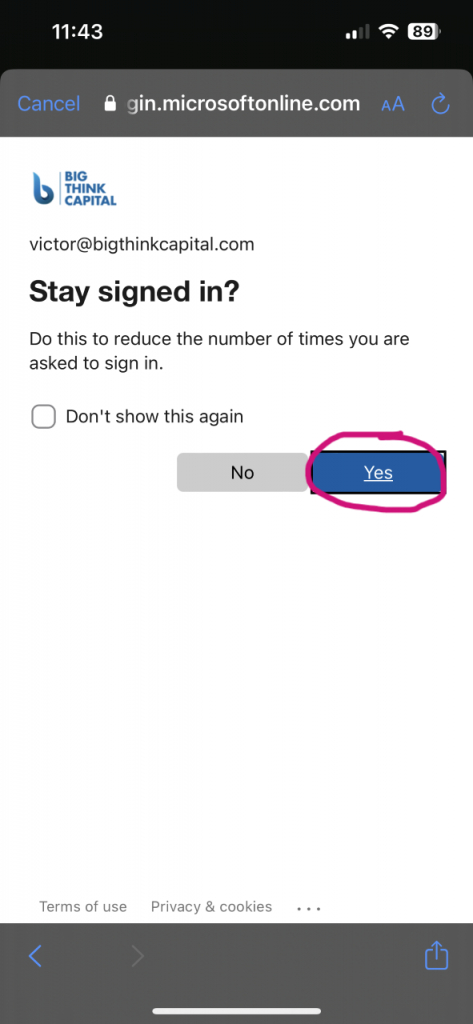
Turn on notifications or click on the X in the top left corner to finish setting up

 How to set up/login to Slack Mobile
Turn on notifications or click on the X in the top left corner to finish setting up
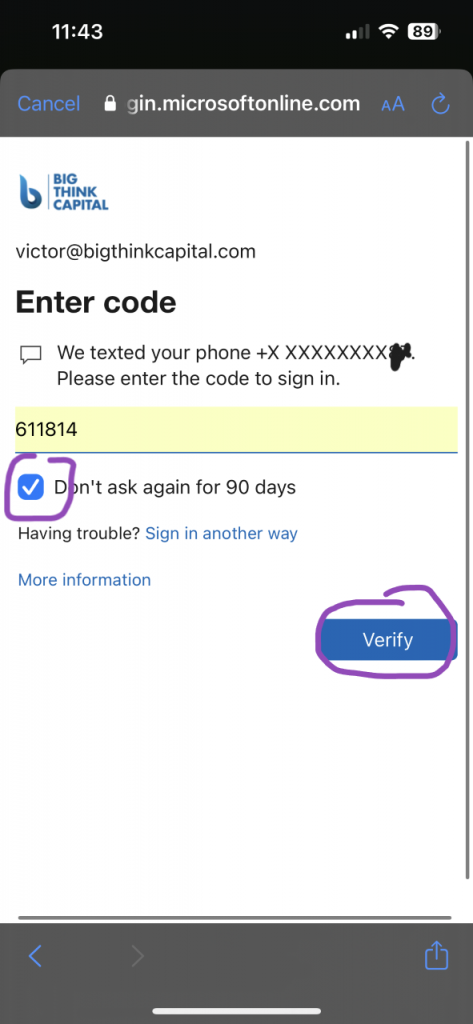
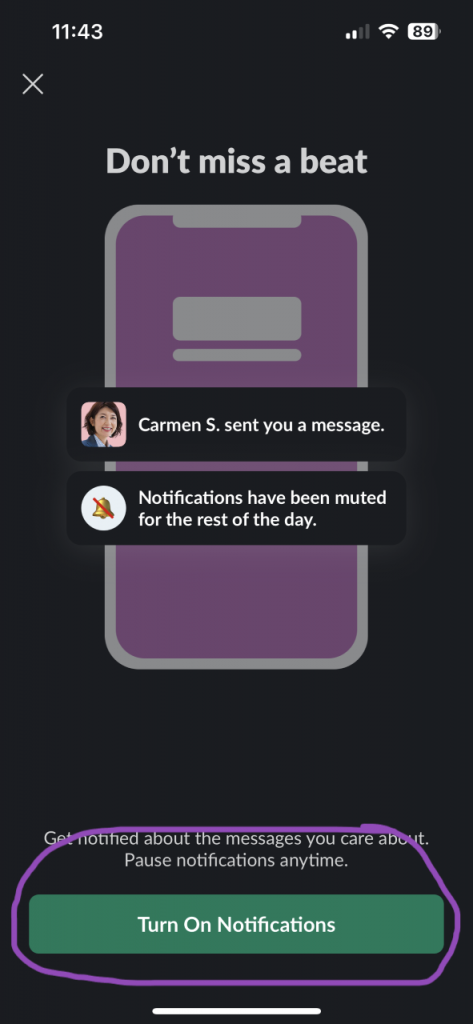
Verify and hit ‘Yes’ to Stay Signed In
Turn on notifications or click on the X in the top left corner to finish setting up
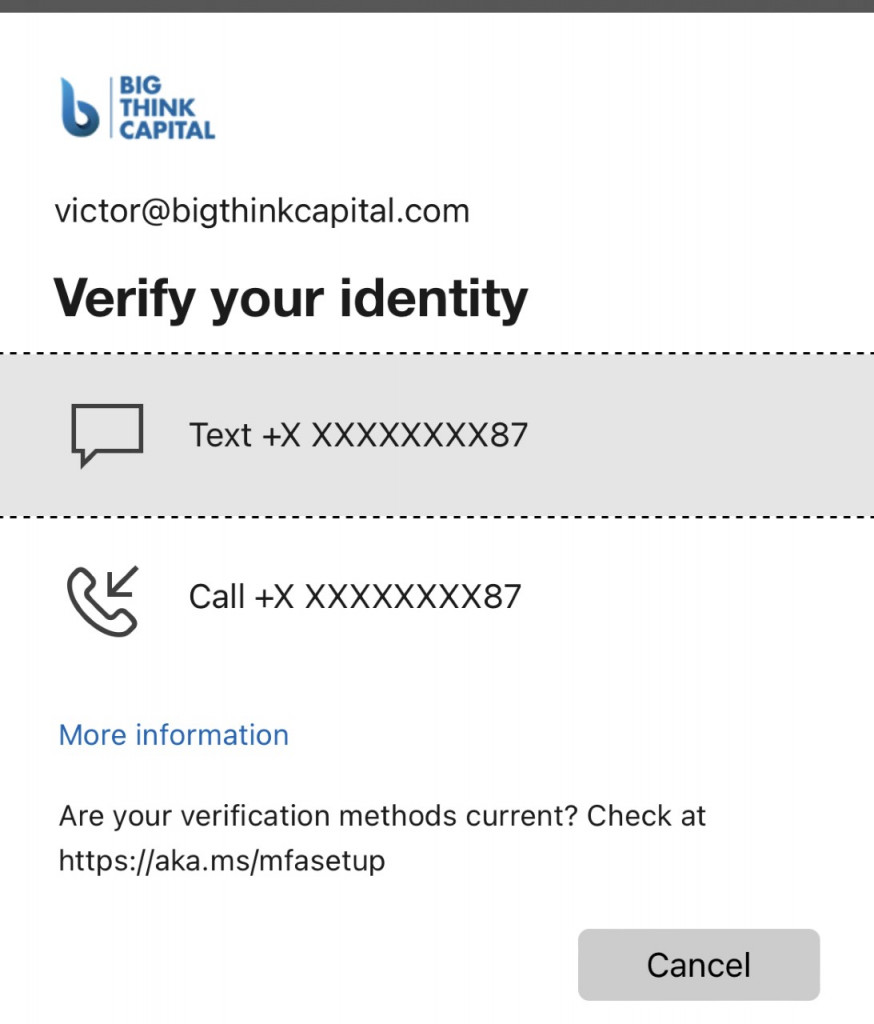
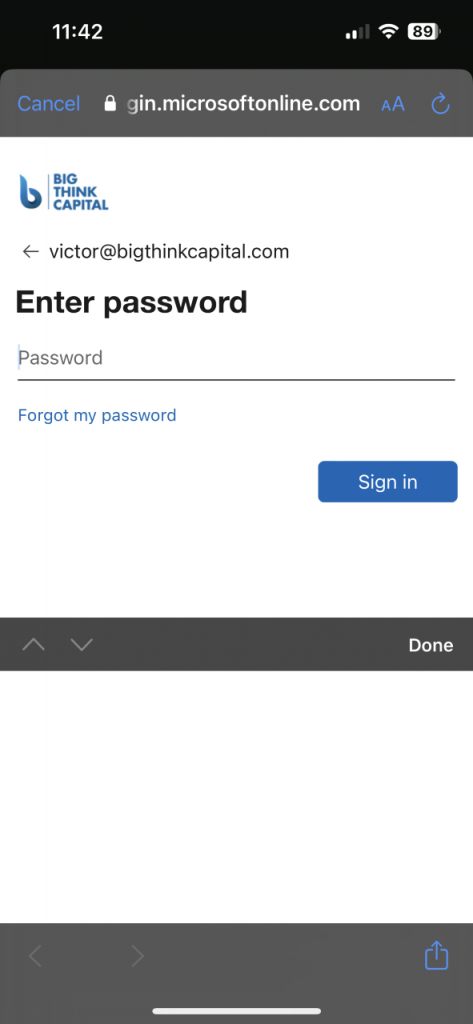
Verify and hit ‘Yes’ to Stay Signed In
Turn on notifications or click on the X in the top left corner to finish setting up
Verify and hit ‘Yes’ to Stay Signed In
Turn on notifications or click on the X in the top left corner to finish setting up
Verify and hit ‘Yes’ to Stay Signed In
Turn on notifications or click on the X in the top left corner to finish setting up
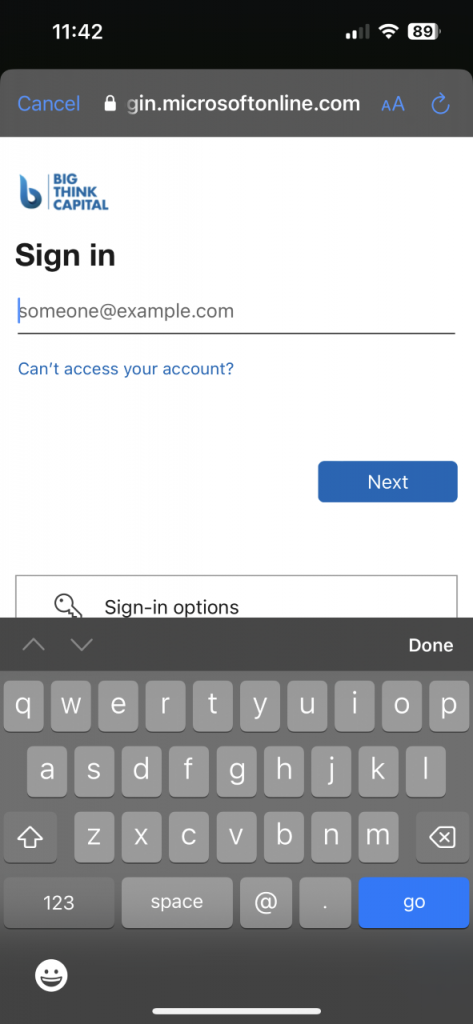
Sign in with your big think credentials
Verify and hit ‘Yes’ to Stay Signed In
Turn on notifications or click on the X in the top left corner to finish setting up
Sign in with your big think credentials
Verify and hit ‘Yes’ to Stay Signed In
Turn on notifications or click on the X in the top left corner to finish setting up
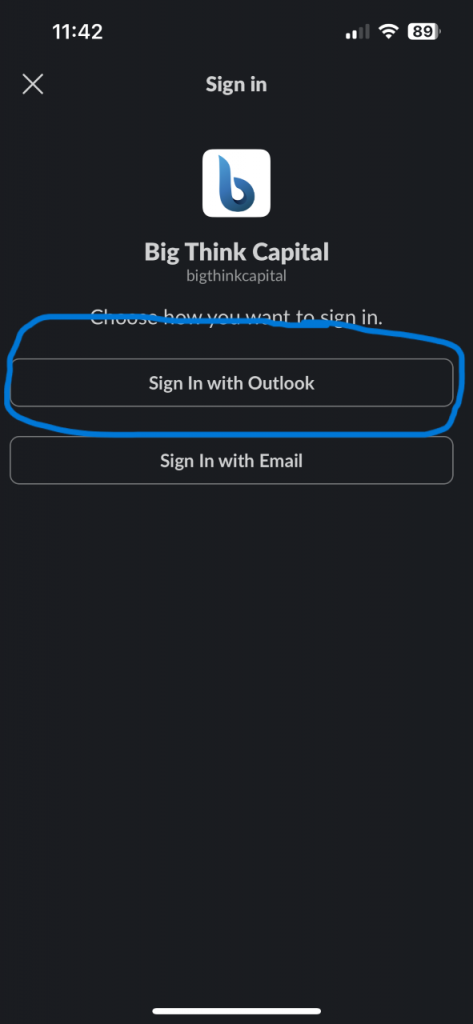
Sign in with Outlook
Sign in with your big think credentials
Verify and hit ‘Yes’ to Stay Signed In
Turn on notifications or click on the X in the top left corner to finish setting up
Sign in with Outlook
Sign in with your big think credentials
Verify and hit ‘Yes’ to Stay Signed In
Turn on notifications or click on the X in the top left corner to finish setting up
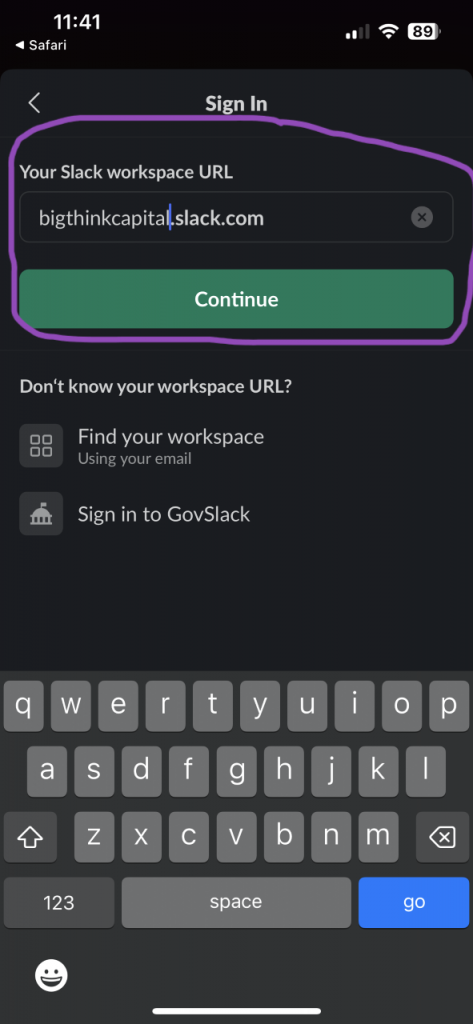
Enter ‘bigthinkcapital’
Sign in with Outlook
Sign in with your big think credentials
Verify and hit ‘Yes’ to Stay Signed In
Turn on notifications or click on the X in the top left corner to finish setting up
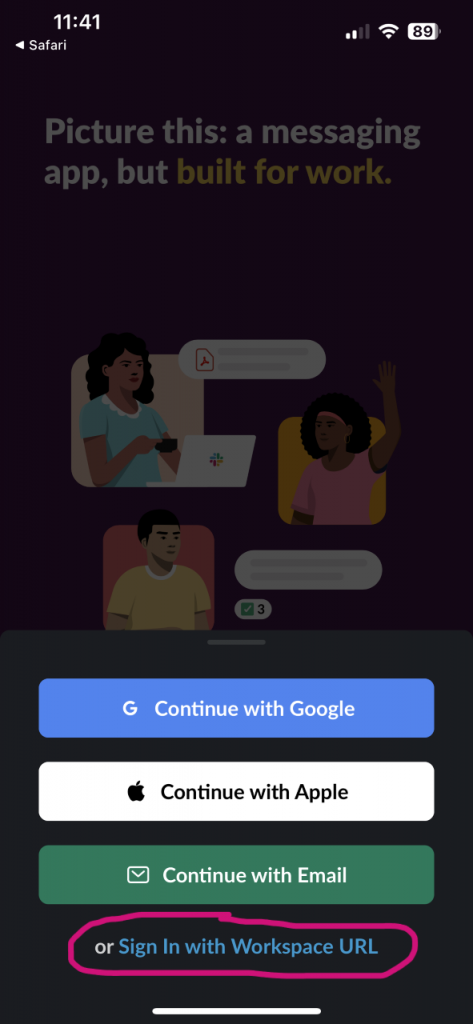
Enter ‘bigthinkcapital’
Sign in with Outlook
Sign in with your big think credentials
Verify and hit ‘Yes’ to Stay Signed In
Turn on notifications or click on the X in the top left corner to finish setting up
Select ‘Sign in with Workspace URL’
Enter ‘bigthinkcapital’
Sign in with Outlook
Sign in with your big think credentials
Verify and hit ‘Yes’ to Stay Signed In
Turn on notifications or click on the X in the top left corner to finish setting up
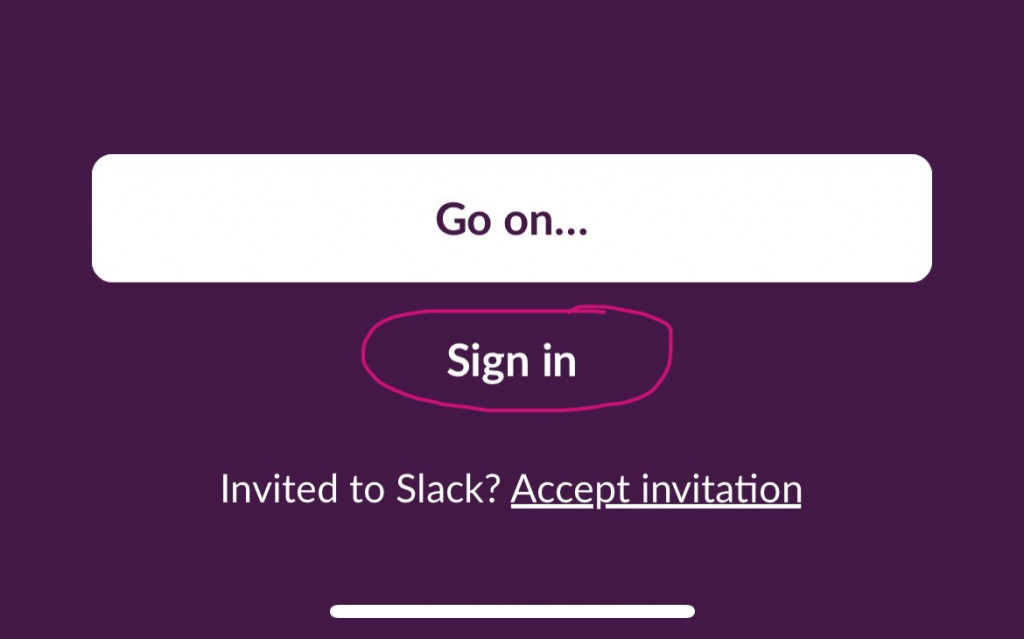
Select ‘Sign in with Workspace URL’
Enter ‘bigthinkcapital’
Sign in with Outlook
Sign in with your big think credentials
Verify and hit ‘Yes’ to Stay Signed In
Turn on notifications or click on the X in the top left corner to finish setting up
Open the App and select sign in
Select ‘Sign in with Workspace URL’
Enter ‘bigthinkcapital’
Sign in with Outlook
Sign in with your big think credentials
Verify and hit ‘Yes’ to Stay Signed In
Turn on notifications or click on the X in the top left corner to finish setting up
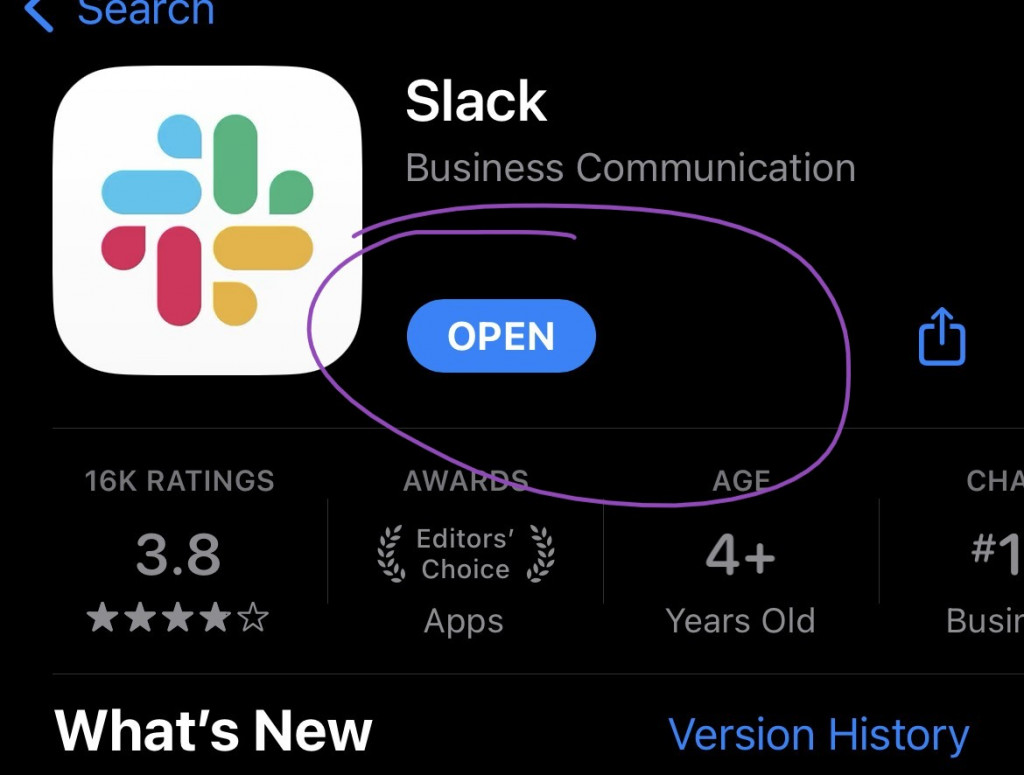
Open the App and select sign in
Select ‘Sign in with Workspace URL’
Enter ‘bigthinkcapital’
Sign in with Outlook
Sign in with your big think credentials
Verify and hit ‘Yes’ to Stay Signed In
Turn on notifications or click on the X in the top left corner to finish setting up
Click “GET” where open is displayed
Open the App and select sign in
Select ‘Sign in with Workspace URL’
Enter ‘bigthinkcapital’
Sign in with Outlook
Sign in with your big think credentials
Verify and hit ‘Yes’ to Stay Signed In
Turn on notifications or click on the X in the top left corner to finish setting up
Click “GET” where open is displayed
Open the App and select sign in
Select ‘Sign in with Workspace URL’
Enter ‘bigthinkcapital’
Sign in with Outlook
Sign in with your big think credentials
Verify and hit ‘Yes’ to Stay Signed In
Turn on notifications or click on the X in the top left corner to finish setting up
Select the Slack App
Click “GET” where open is displayed
Open the App and select sign in
Select ‘Sign in with Workspace URL’
Enter ‘bigthinkcapital’
Sign in with Outlook
Sign in with your big think credentials
Verify and hit ‘Yes’ to Stay Signed In
Turn on notifications or click on the X in the top left corner to finish setting up

Select the Slack App
Click “GET” where open is displayed
Open the App and select sign in
Select ‘Sign in with Workspace URL’
Enter ‘bigthinkcapital’
Sign in with Outlook
Sign in with your big think credentials
Verify and hit ‘Yes’ to Stay Signed In
Turn on notifications or click on the X in the top left corner to finish setting up
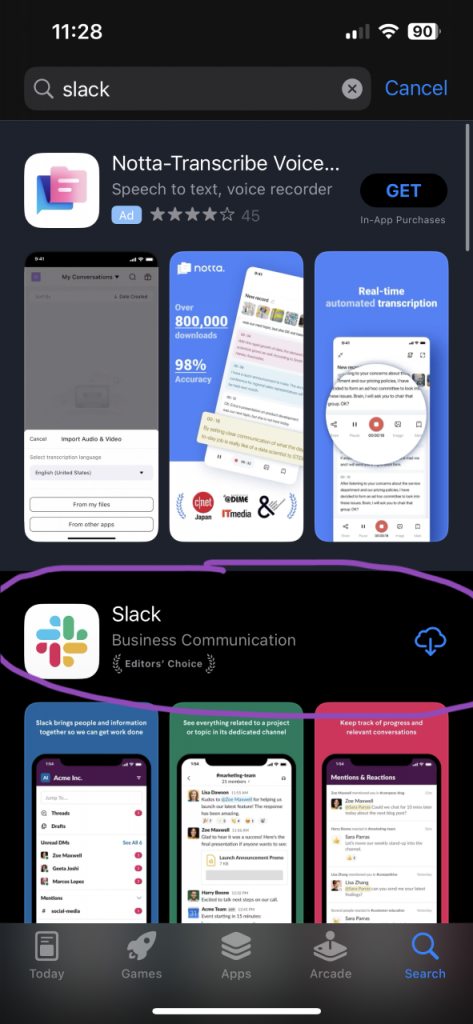
Search for slack
Select the Slack App
Click “GET” where open is displayed
Open the App and select sign in
Select ‘Sign in with Workspace URL’
Enter ‘bigthinkcapital’
Sign in with Outlook
Sign in with your big think credentials
Verify and hit ‘Yes’ to Stay Signed In
Turn on notifications or click on the X in the top left corner to finish setting up

Search for slack
Select the Slack App
Click “GET” where open is displayed
Open the App and select sign in
Select ‘Sign in with Workspace URL’
Enter ‘bigthinkcapital’
Sign in with Outlook
Sign in with your big think credentials
Verify and hit ‘Yes’ to Stay Signed In
Turn on notifications or click on the X in the top left corner to finish setting up
Search in the bottom right corner
Search for slack
Select the Slack App
Click “GET” where open is displayed
Open the App and select sign in
Select ‘Sign in with Workspace URL’
Enter ‘bigthinkcapital’
Sign in with Outlook
Sign in with your big think credentials
Verify and hit ‘Yes’ to Stay Signed In
Turn on notifications or click on the X in the top left corner to finish setting up
Search in the bottom right corner
Search for slack
Select the Slack App
Click “GET” where open is displayed
Open the App and select sign in
Select ‘Sign in with Workspace URL’
Enter ‘bigthinkcapital’
Sign in with Outlook
Sign in with your big think credentials
Verify and hit ‘Yes’ to Stay Signed In
Turn on notifications or click on the X in the top left corner to finish setting up
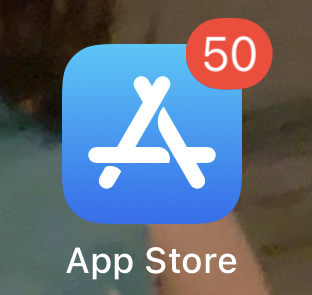
Go to the App Store
Search in the bottom right corner
Search for slack
Select the Slack App
Click “GET” where open is displayed
Open the App and select sign in
Select ‘Sign in with Workspace URL’
Enter ‘bigthinkcapital’
Sign in with Outlook
Sign in with your big think credentials
Verify and hit ‘Yes’ to Stay Signed In
Turn on notifications or click on the X in the top left corner to finish setting up
Go to the App Store
Search in the bottom right corner
Search for slack
Select the Slack App
Click “GET” where open is displayed
Open the App and select sign in
Select ‘Sign in with Workspace URL’
Enter ‘bigthinkcapital’
Sign in with Outlook
Sign in with your big think credentials
Verify and hit ‘Yes’ to Stay Signed In
Turn on notifications or click on the X in the top left corner to finish setting up
Go to the App Store
Search in the bottom right corner
Search for slack
Select the Slack App
Click “GET” where open is displayed
Open the App and select sign in
Select ‘Sign in with Workspace URL’
Enter ‘bigthinkcapital’
Sign in with Outlook
Sign in with your big think credentials
Verify and hit ‘Yes’ to Stay Signed In
Turn on notifications or click on the X in the top left corner to finish setting up
Go to the App Store
Search in the bottom right corner
Search for slack
Select the Slack App
Click “GET” where open is displayed
Open the App and select sign in
Select ‘Sign in with Workspace URL’
Enter ‘bigthinkcapital’
Sign in with Outlook
Sign in with your big think credentials
Verify and hit ‘Yes’ to Stay Signed In
Turn on notifications or click on the X in the top left corner to finish setting up