
Tech Hub

How to Manually Create and Send a Custom Box Document
BoxHow to Manually Create and Send a Custom Box Document
How to Manually Create and Send a Custom Box Document

How to Manually Create and Send a Custom Box Document

This guide walks you through creating and sending a custom Box Sign document. Each step includes a screenshot and a brief instruction.

Note on links: The screenshots below use pre‑signed URLs. If any image stops loading, the link likely expired. Host them in a permanent location for long‑term use.

Step 1

Navigate to https://app.box.com/folder/0.

Step 1 screenshot

Step 2

Click Sign.

Step 2 screenshot

Step 3

Click Request Signature.

Step 3 screenshot

Step 4

Click Add File.

Step 4 screenshot

Step 5

Click Upload File and choose the file you want to send.

Step 5 screenshot

Step 6

In Add Recipients, type the recipient’s email.

Step 6 screenshot

Step 7

Click Add.

Step 7 screenshot

Step 8

Click the recipient’s name or email.

Step 8 screenshot

Step 9

Make sure the recipient is set as Signer.

Step 9 screenshot

Step 10

Click your name.

Step 10 screenshot

Step 11

Make sure your role is Get a Copy.

Step 11 screenshot

Step 12

Drag fields from the toolbar onto your document.

Step 12 screenshot

Step 13

Click a field to edit settings like font size and required, then Assign To the recipient.

Step 13 screenshot

Step 14

Set a default font size for all new fields.

Step 14 screenshot

Step 15

Email and Date Signed fields will auto populate for the recipient.

Step 15 screenshot

Step 16

Use the Radio field for checkboxes when needed.

Step 16 screenshot

Step 17

Resize fields by dragging the corner handle.

Step 17 screenshot

Step 18

Rename the document via the three dots menu, then choose Rename.

Step 18 screenshot

Step 19

Add an optional email subject and message under Email Notifications.

Step 19 screenshot

Step 20

Under Options, set an expiration for the document.

Step 20 screenshot

Step 21

Choose the Save Location folder for the signed document.

Step 21 screenshot

Step 22

Review all fields, recipients, and options.

Step 22 screenshot

Step 23

Click Send Request when the document is ready.

Step 23 screenshot

Step 24

View sent requests in your Box Sign dashboard and in the save folder.

Step 24 screenshot
Built for Big Think Capital • Updated 2025-09-05

About This Page

The Tech Hub is your go-to resource for IT support and tool training. Find how-to guides, troubleshooting tips, and best practices for platforms like Outlook, Teams, OneDrive, Calendly, and more.

Can’t Find What You’re Looking For?

If you still need help or can’t locate the info you need, submit an IT support ticket and we’ll get back to you as soon as possible.

What’s New

Record-Breaking Summer at Big Think Capital 🌟
This August, Big Think Capital hit a new milestone — funding 1,075 deals totaling $32.56M. A record-breaking summer powered by teamwork, momentum, and dedication. 💪🌟
🎲 Win Your Way to Vegas! 🎲
🔥 The road to Vegas starts now! From 9/5–10/17, each sales team battles head-to-head — and the top performer from every team wins a spot to represent BTC at the B2B Finance Expo in Las Vegas. Outperform. Outshine. Vegas is the prize. 🎲✨
🏆 Introducing the Legends Club 🏆
🏆 The Legends Club celebrates agents who achieve extraordinary results, with exclusive perks like your portrait on the Legends Wall, custom gear, and annual outings. Greatness starts here.
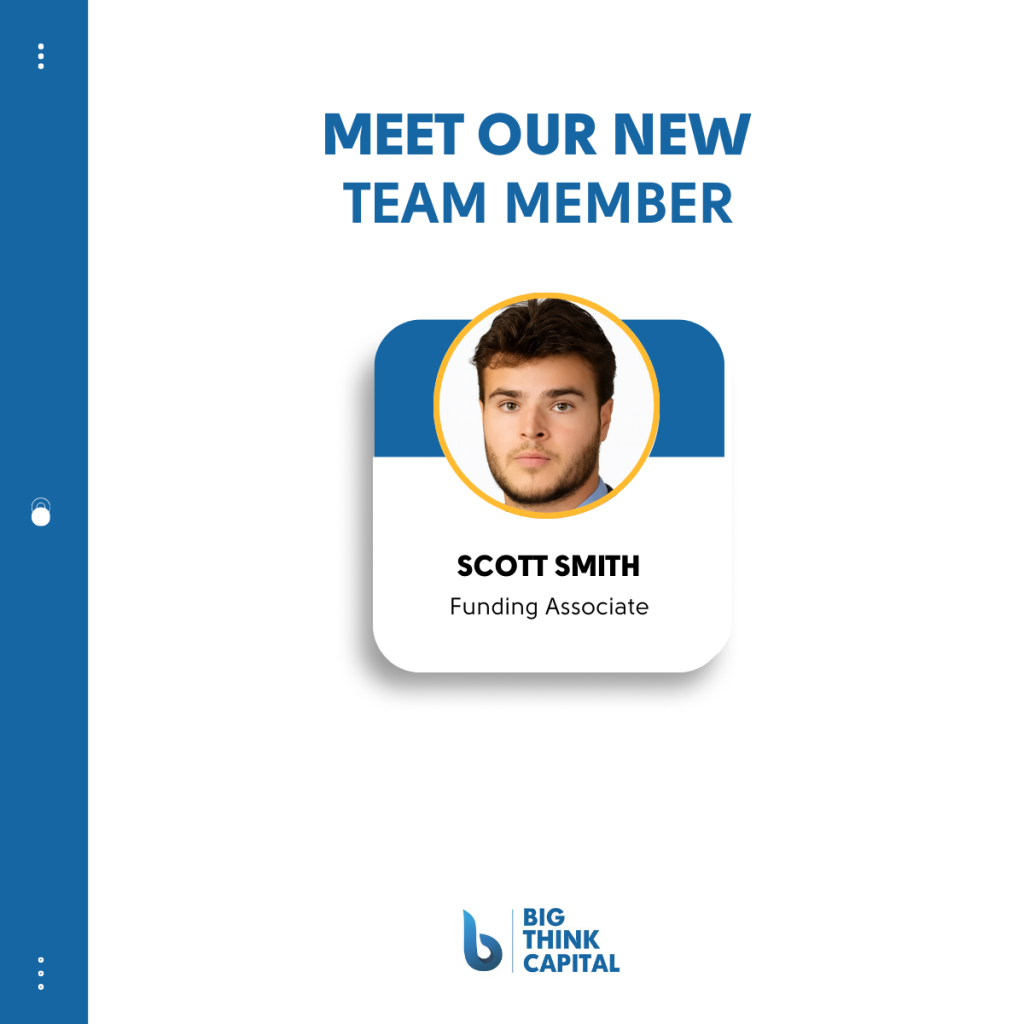
Welcome our New Team Member: Scott Smith
🚀 Excited to welcome Scott Smith as our newest Funding Associate! With a background as a pro athlete, entrepreneur, and Johns Hopkins graduate, Scott brings energy and expertise to help businesses thrive.
Big Think Capital Launches President’s Club — Celebrate Excellence with a Tropical Getaway
The President’s Club is Big Think Capital’s newest recognition program, honoring our top performers with an exclusive tropical getaway this January. Club members earn their spot by surpassing ambitious goals, driving company success, and embodying excellence every day. This is more than a trip — it’s a celebration of hard work, teamwork, and achievement.

Quick Launch

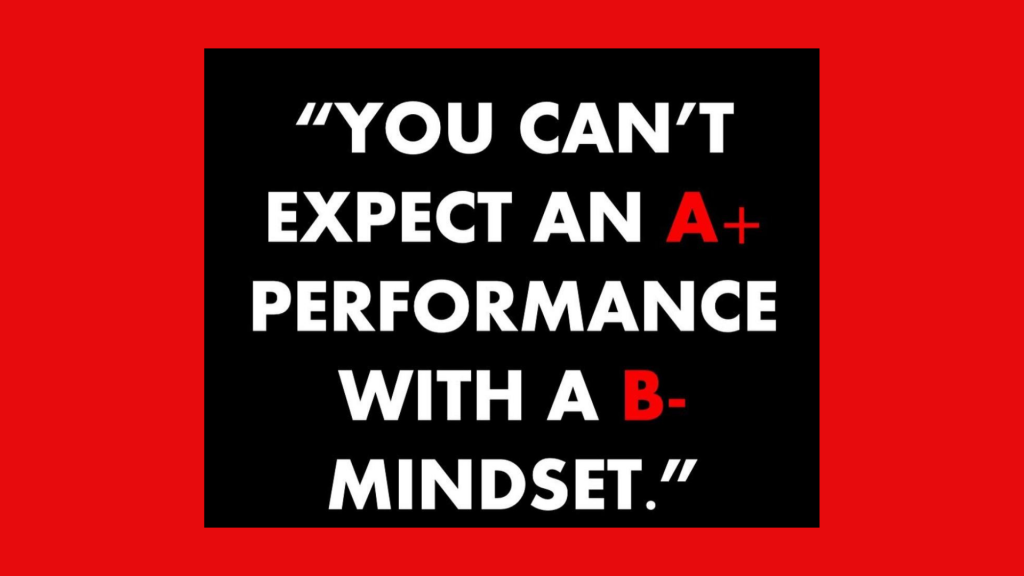
Quote of the Day