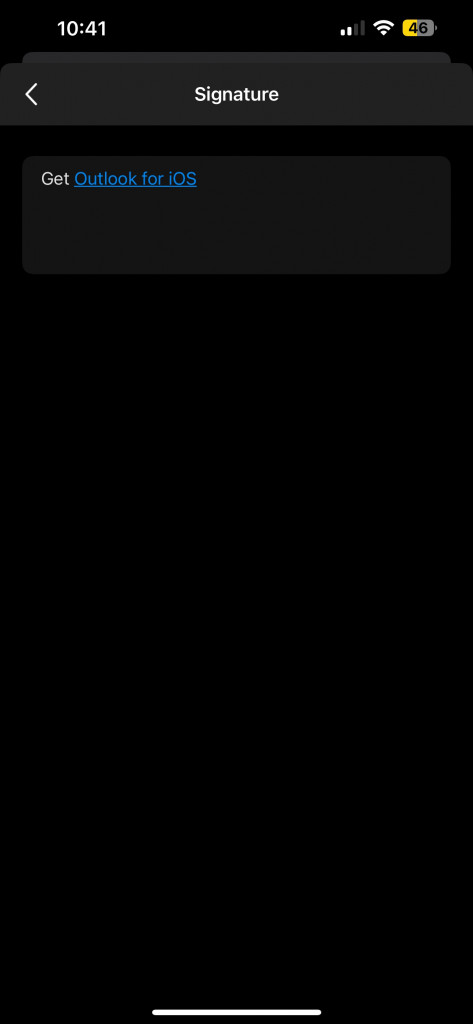
5. Click in the text box and delete EVERYTHING.
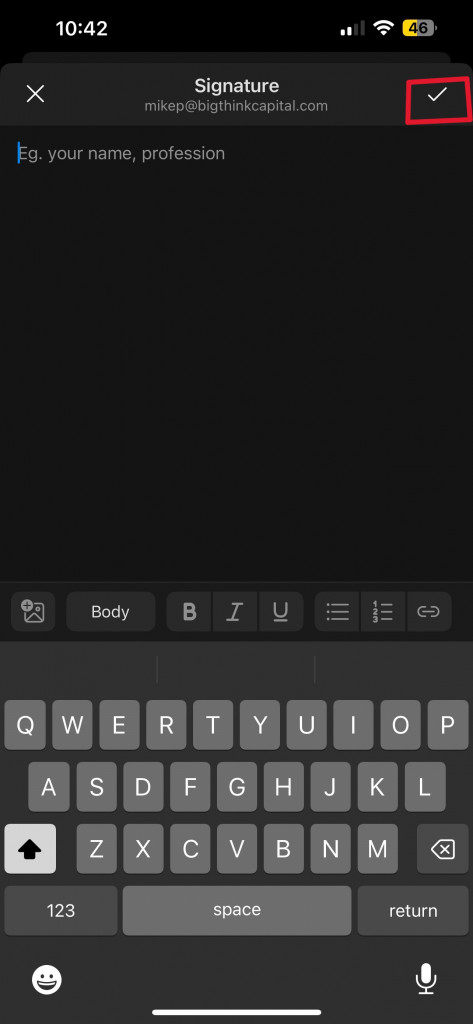
6. Press the check mark when you are done
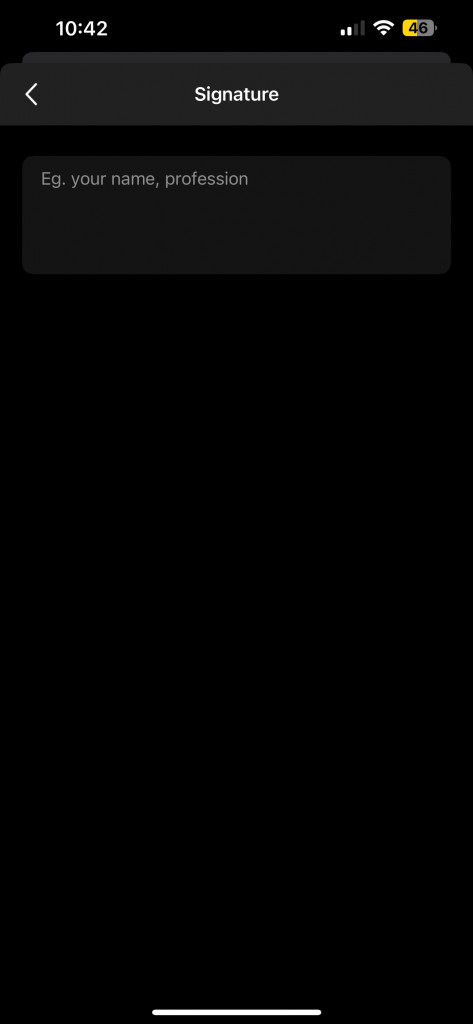
7. If done correctly, you will see the example text “Eg. your name, profession”

 How to remove your Outlook Signature on iPhone
5. Click in the text box and delete EVERYTHING.
6. Press the check mark when you are done
7. If done correctly, you will see the example text “Eg. your name, profession”
3. Press on “Signature”
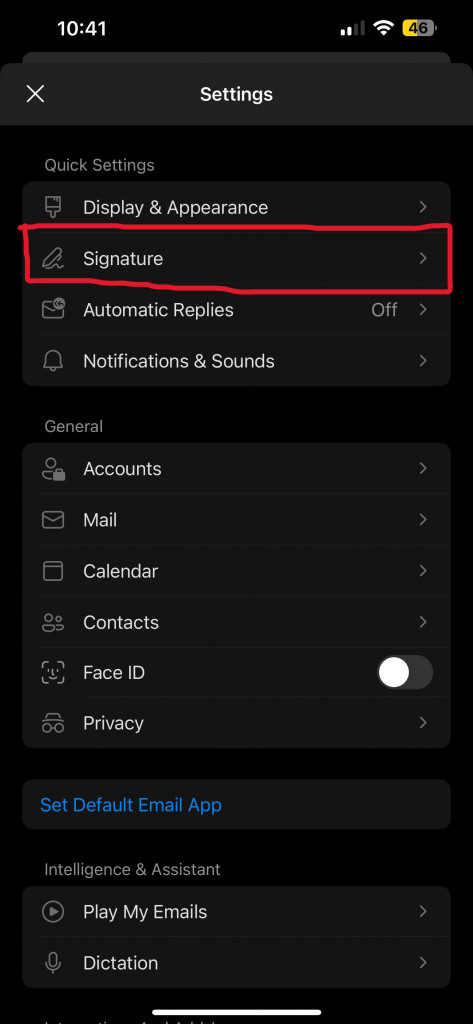
4. You will then see your current signature, The signature in this case would be “Get Outlook for iOS” if you have not changed it yourself.
5. Click in the text box and delete EVERYTHING.
6. Press the check mark when you are done
7. If done correctly, you will see the example text “Eg. your name, profession”
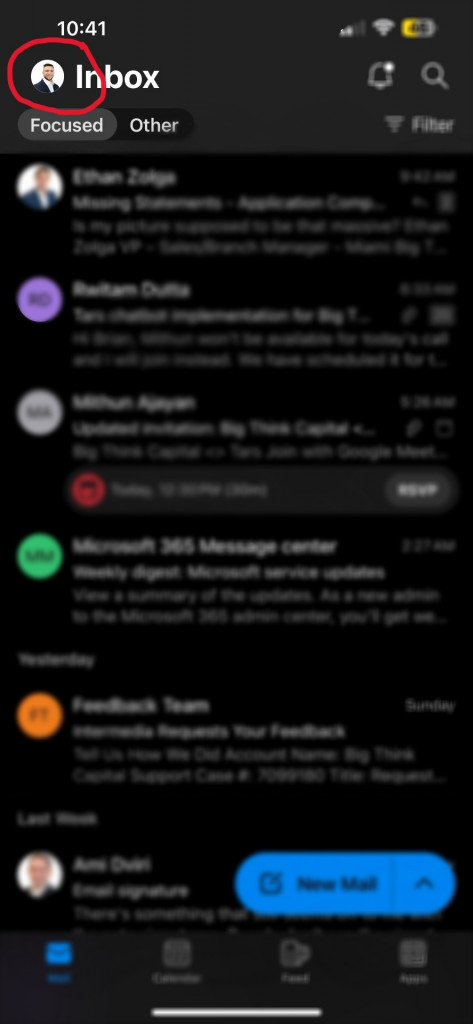
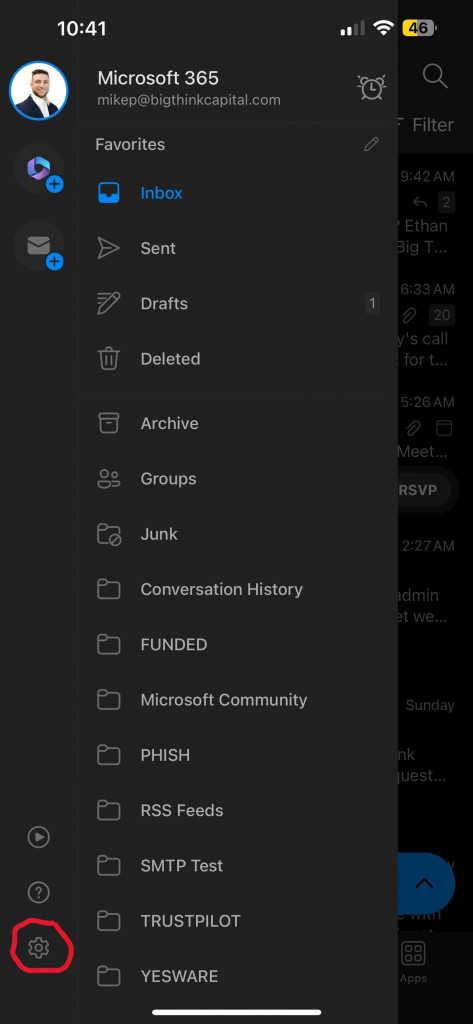
2. Press settings in the bottom left
3. Press on “Signature”
4. You will then see your current signature, The signature in this case would be “Get Outlook for iOS” if you have not changed it yourself.
5. Click in the text box and delete EVERYTHING.
6. Press the check mark when you are done
7. If done correctly, you will see the example text “Eg. your name, profession”
2. Press settings in the bottom left
3. Press on “Signature”
4. You will then see your current signature, The signature in this case would be “Get Outlook for iOS” if you have not changed it yourself.
5. Click in the text box and delete EVERYTHING.
6. Press the check mark when you are done
7. If done correctly, you will see the example text “Eg. your name, profession”
2. Press settings in the bottom left
3. Press on “Signature”
4. You will then see your current signature, The signature in this case would be “Get Outlook for iOS” if you have not changed it yourself.
5. Click in the text box and delete EVERYTHING.
6. Press the check mark when you are done
7. If done correctly, you will see the example text “Eg. your name, profession”
2. Press settings in the bottom left
3. Press on “Signature”
4. You will then see your current signature, The signature in this case would be “Get Outlook for iOS” if you have not changed it yourself.
5. Click in the text box and delete EVERYTHING.
6. Press the check mark when you are done
7. If done correctly, you will see the example text “Eg. your name, profession”
2. Press settings in the bottom left
3. Press on “Signature”
4. You will then see your current signature, The signature in this case would be “Get Outlook for iOS” if you have not changed it yourself.
5. Click in the text box and delete EVERYTHING.
6. Press the check mark when you are done
7. If done correctly, you will see the example text “Eg. your name, profession”